Your first device in Central.
Follow the first-device workflow: install and enrol, find the machine, review its health and open an available management tool. Use the steps below to check your own deployment.
1. Install and enrol.
Choose a supported Windows or Linux machine. Sign in to Central and follow the setup information for that machine, including the required installation privileges and outbound network access. Enrol it into the correct organisation and give it a recognisable name.
2. Find the connected device.
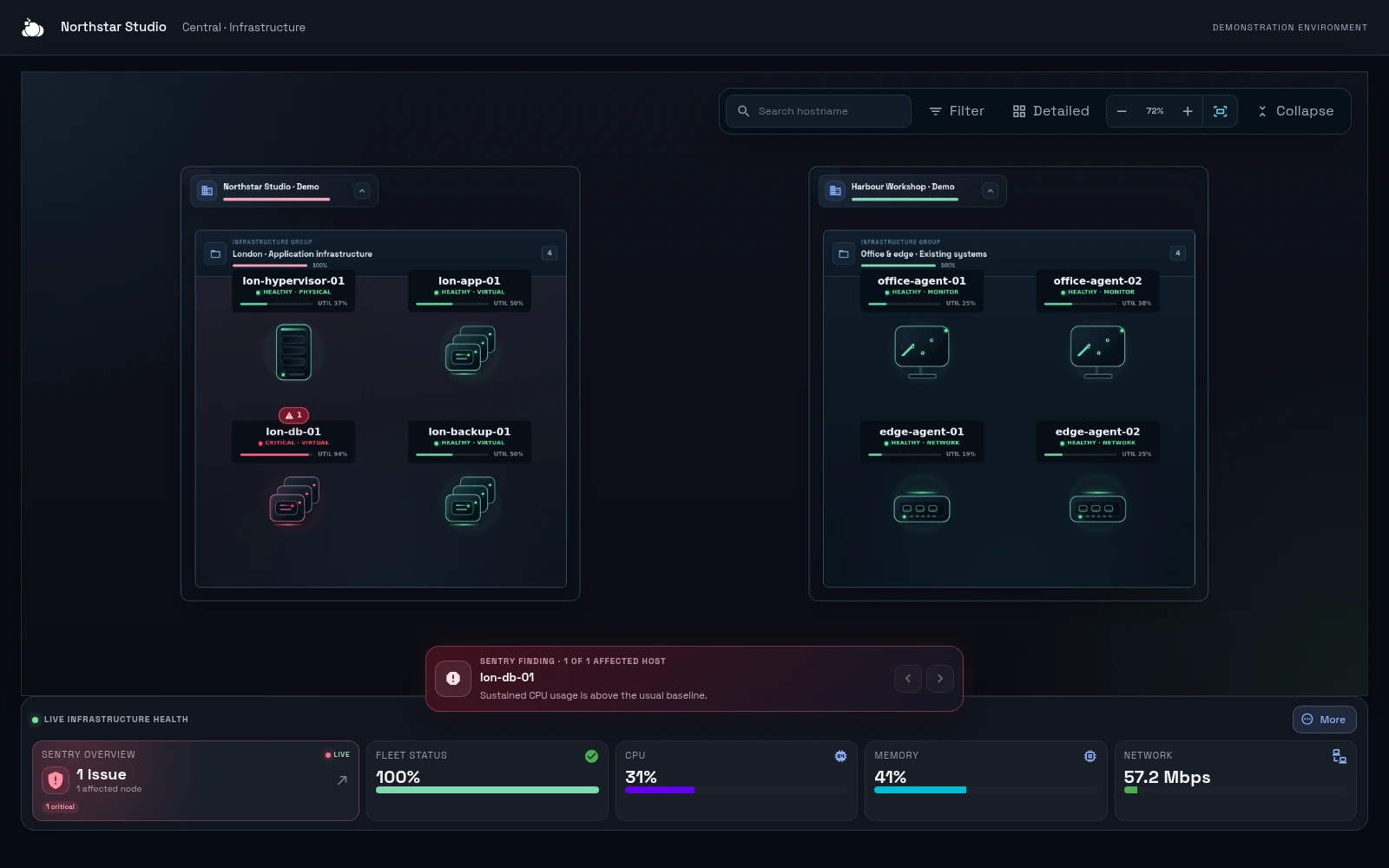
After your agent connects, confirm that the machine appears in the expected group. Check the hostname and recent reporting information before proceeding. If it is missing, use the enrolment and connection guidance in Central.
3. Inspect its health.
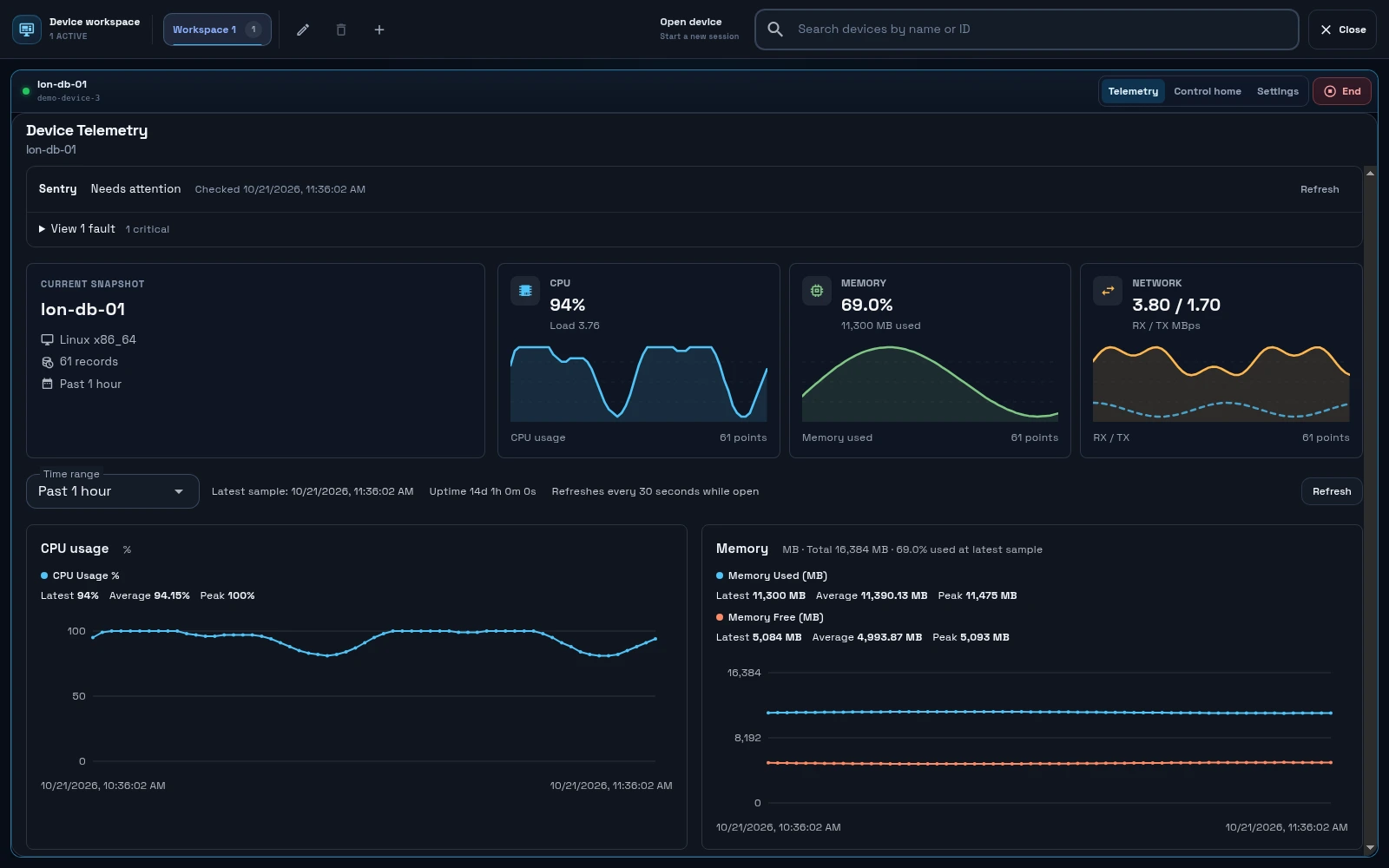
For a reported slowdown, select the relevant period and inspect the available CPU, memory and network measurements. Compare the readings with the application’s behaviour; resource usage alone does not establish the cause.
4. Open and close an authorised session.
Select a management tool available for your device and role. Authenticate where required and confirm the target identity before acting. For example, check the hostname in a supported terminal session before investigating a server issue.
When finished, use the tool’s disconnect control and verify the session has ended. Native RDP, SSH and agent-provided tools have different target requirements. Choose the appropriate access method.